

A camera for streaming captures live video and sends it to viewers through platforms like YouTube, Twitch, or Zoom.
Understanding what is a camera for streaming helps you choose the right setup for clear video, smooth motion, and reliable live broadcasts. A streaming camera can be a webcam, mirrorless camera, DSLR, action camera, or even a phone, depending on your goals and budget. This guide explains how these cameras work, what features matter, and how to avoid common setup mistakes.
What Is a Camera for Streaming?
A camera for streaming is a video device used to record you or your surroundings and send that video to an online audience in real time. It connects to a computer, phone, or streaming device through USB, HDMI, Wi-Fi, or another supported connection.
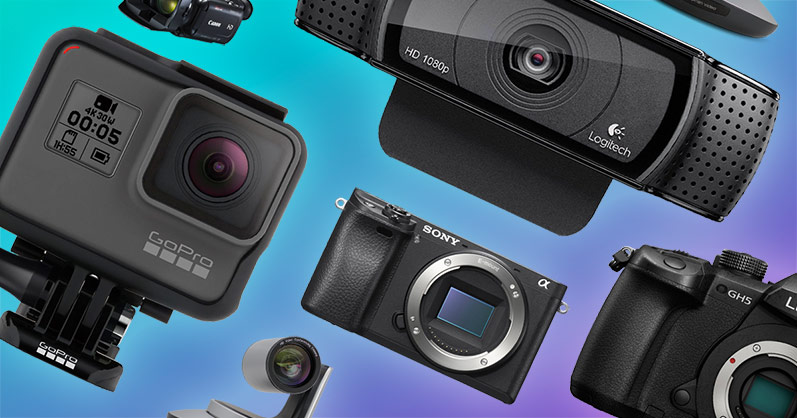
The answer to “what is a camera for streaming” is broader than “a webcam.” A webcam is one type of streaming camera, but many creators use professional cameras for better image quality, stronger low-light performance, and more control over focus and exposure.
A basic streaming setup often includes:
• A camera for streaming
• A computer or mobile device
• A streaming platform
• A stable internet connection
• A microphone or audio interface
• lighting
The camera captures the picture, while streaming software sends that picture to viewers. Popular software includes OBS Studio, Streamlabs, and platform-based tools. The camera alone does not create a complete stream, just as a microphone alone does not create a podcast.
Source: epiphan.com
How Does a Camera for Streaming Work?
A camera for streaming changes light into digital video. It uses a lens to focus light onto an image sensor. The sensor then creates frames, such as 30 or 60 images each second.
The camera sends those frames to your computer or mobile device. Streaming software may resize, crop, add graphics, or combine the camera feed with gameplay and screen recordings. The software then compresses the video and uploads it to the streaming platform.
Here is the basic process:
- The lens gathers light.
- The image sensor records the scene.
- The camera creates a digital video signal.
- A USB cable, HDMI capture device, or wireless connection sends the signal.
- Streaming software processes the video.
- The platform broadcasts the stream to viewers.
When people ask what is a camera for streaming, they often focus only on resolution. Resolution matters, but it is just one part of the process. A sharp 1080p image with good light can look better than a poorly lit 4K image.

Source: amazon.com
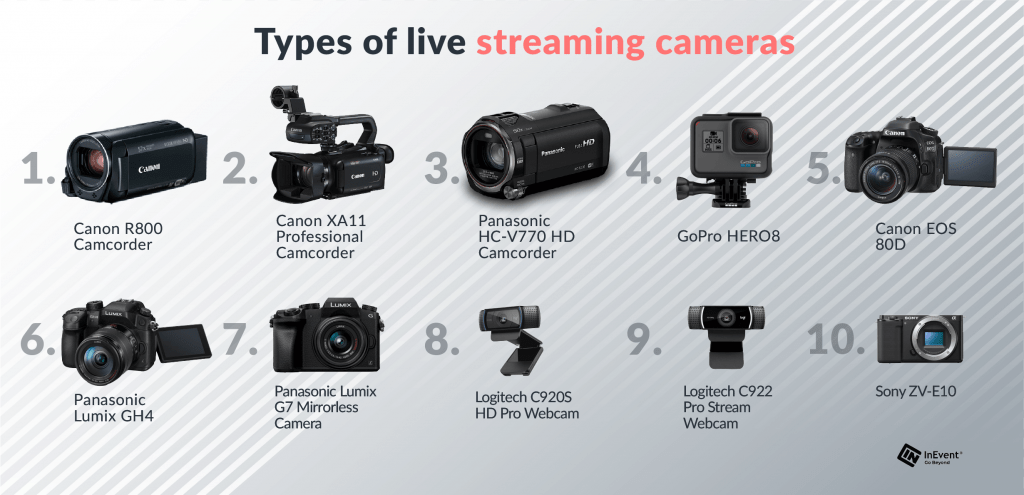
Types of Cameras Used for Streaming
Different cameras suit different streaming styles. Your best choice depends on your content, room, budget, and need for mobility.
Webcams
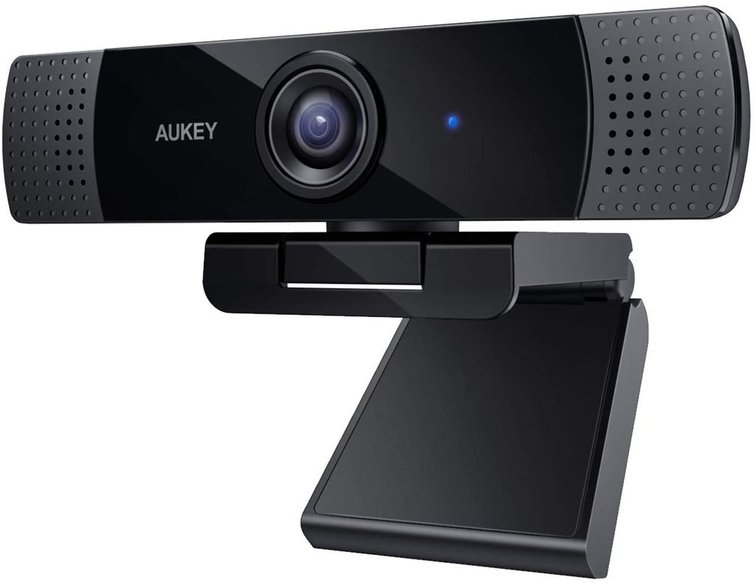
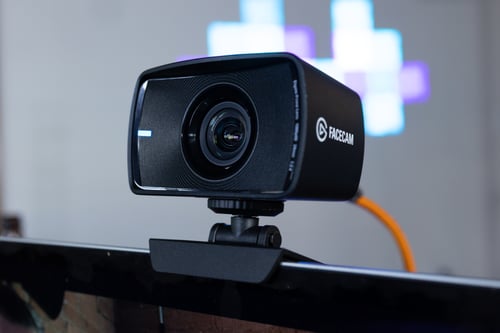
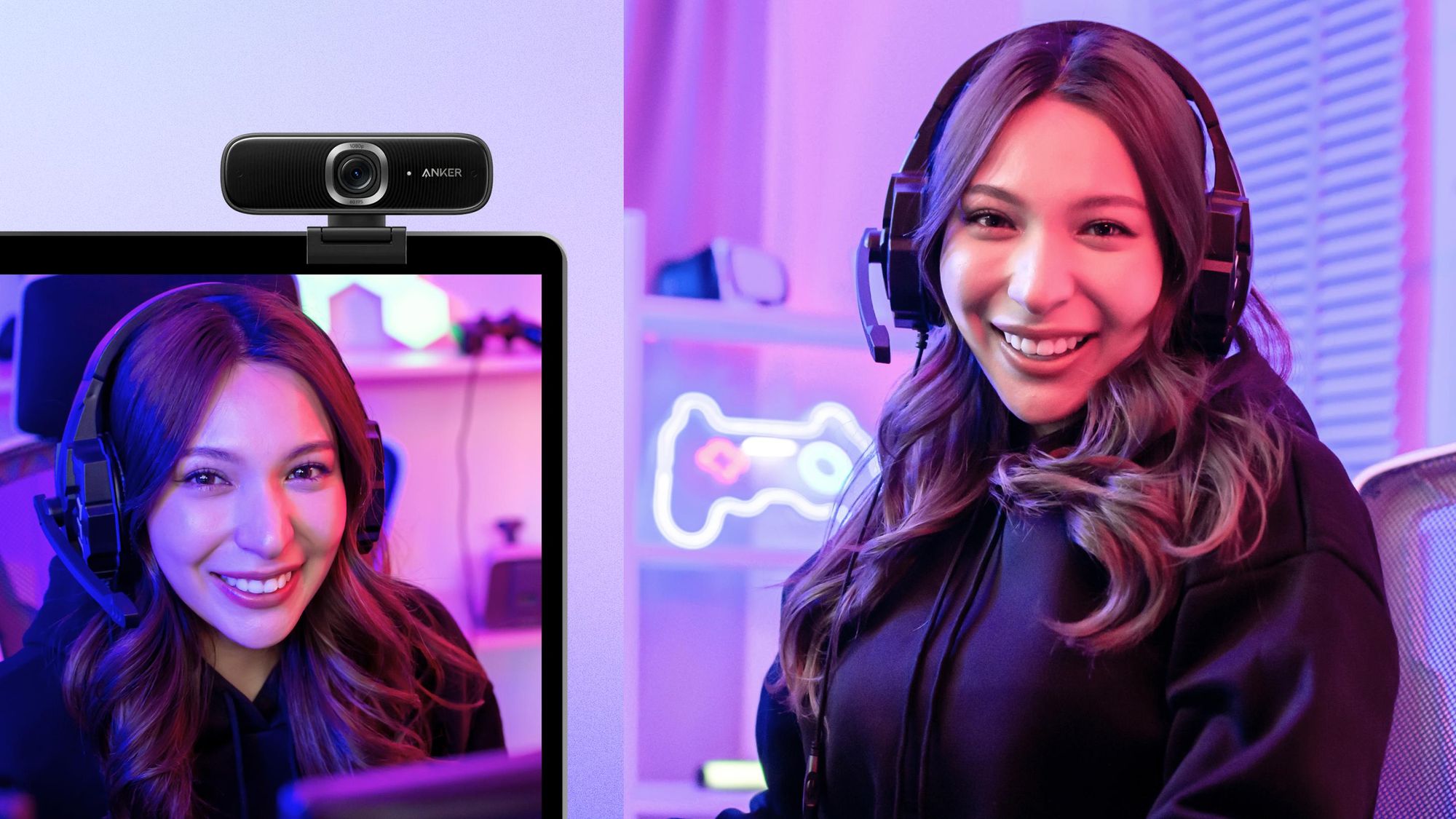
Webcams are the simplest choice for most beginners. They connect to a computer through USB and usually work with little setup.
A webcam may include:
• An integrated microphone
• Automatic exposure
• Automatic white balance
• Autofocus
• A built-in monitor clip
Many modern webcams support 1080p video at 30 frames per second. Some support 60 frames per second or 4K resolution.
Webcams are ideal for video calls, gaming streams, online teaching, and casual content. Their small sensors may struggle in dark rooms, but good lighting can greatly improve the result.
Mirrorless Cameras
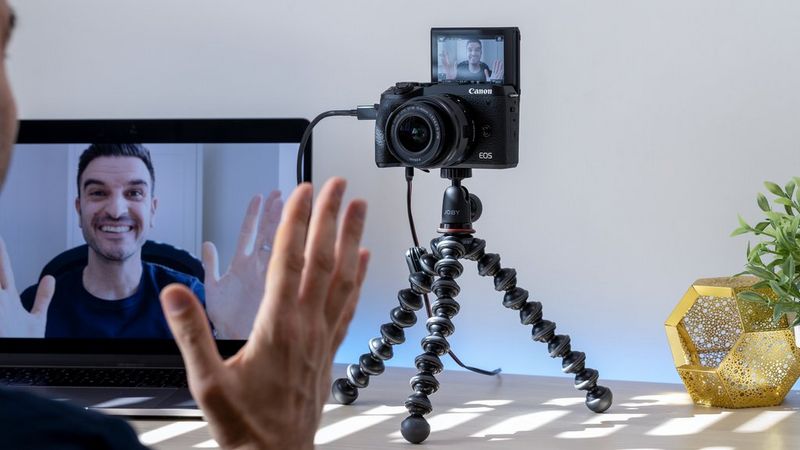
Mirrorless cameras use interchangeable lenses and larger sensors. They often deliver a softer background, better detail, and stronger performance in low light.
A mirrorless camera can be a strong choice for:
• Professional live streams
• Product demonstrations
• Interviews
• Studio broadcasts
• Long form educational videos
Many models can send video through HDMI. In that case, you may need a capture card to convert the camera signal into a format your computer can use.
DSLR Cameras
DSLR cameras can also work as a camera for streaming. Many provide excellent image quality and lens options.
Older DSLR models may have limits. Some can overheat during long sessions. Others may show focus boxes, shut down after a set time, or require special software. Before buying one for streaming, check its clean HDMI output, power options, and continuous recording limits.
Action Cameras
Action cameras are small, tough, and useful for outdoor streams. They can work well for travel, sports, cooking, and hands free content.
Their wide angle lenses capture more of the scene. However, that wide view may make your face look farther away or slightly distorted. Action cameras also need strong lighting and careful audio planning.
Smartphones
A modern smartphone can serve as a capable camera for streaming. Many phones have sharp sensors, strong image processing, and excellent stabilization.
A phone may be the best starting point if you already own one. You can use it with a streaming app, a tripod, a light, and a separate microphone. The main limits are battery life, heat, storage, and the need to manage calls or notifications during a broadcast.
Source: premiumbeat.com
Why Use a Dedicated Camera for Streaming?
A dedicated camera can make your stream look more polished. It may offer a larger sensor, a better lens, cleaner color, and more control than a basic built in webcam.
The main benefits include:
• Better image quality
• Improved low light performance
• More natural background blur
• Better control over focus and exposure
• Wider lens choices
• Stronger performance in professional settings
A dedicated camera is not always necessary. If you sit near a window and create simple talking head videos, a quality webcam may meet your needs. The biggest improvement may come from better lighting and audio rather than a more expensive camera.
This is one of the most useful lessons when learning what is a camera for streaming: equipment should solve a real problem. Do not buy a costly camera if your room is dark, your microphone is poor, or your internet connection is unstable.
Source: canon-europe.com
Important Features in a Camera for Streaming
Knowing the main features helps you compare cameras without getting lost in marketing terms.
Resolution
Resolution describes the number of pixels in the video. Common options include:
• 720p for basic video
• 1080p for clear and widely supported video
• 4K for highly detailed video and flexible cropping
For most live streams, 1080p is a practical choice. It offers clear quality without requiring as much processing power and upload speed as 4K.
Frame Rate
Frame rate means how many frames the camera records each second. A camera that records at 30 frames per second can look smooth for talking videos. Sixty frames per second can make motion look more fluid.
Use 60 frames per second for gaming, sports, dance, or fast demonstrations. Use 30 frames per second for interviews, lessons, and most face to camera streams.
Autofocus
Reliable autofocus keeps your face or product sharp. Face detection and eye detection can help when you move during a stream.
Autofocus is useful, but it can also hunt between your face and nearby objects. For a fixed setup, manual focus may be more stable. Test your focus before going live.
Low Light Performance
A camera with a larger sensor usually gathers more light. This can reduce noise and create a cleaner image in a dim room.
Still, no camera can fully replace lighting. A small LED panel or softbox placed in front of you often creates a bigger improvement than a camera upgrade.
Field of View
Field of view describes how much of the room the lens can show. A wide lens is useful for desks, studios, and group streams. A narrow view can make your face appear larger and reduce distractions in the background.
A lens that is too wide may show unwanted objects or make the room feel empty. Choose a view that fits your space.
Clean HDMI Output
Clean HDMI means the camera sends a video feed without menus, battery icons, or focus boxes. This feature matters when you use an HDMI capture card.
Not every camera offers clean HDMI. Check the manual or manufacturer specifications before buying a camera for streaming.
Power Options
Streaming can drain a battery quickly. Look for continuous USB power, a dummy battery, or another reliable power method.
Keep the power cable secure. A loose cable can end a live broadcast without warning.
Heat Management
Some cameras become warm during long streams. A camera designed for continuous operation is often safer for extended broadcasts.
Test the camera for at least one hour before using it for an important event. Room temperature, resolution, frame rate, and power use can all affect heat.
Source: boxcast.com
Camera for Streaming Versus Webcam
A webcam is usually cheaper and easier to use. A dedicated camera can provide higher image quality and more creative control.
| Feature | Webcam | Dedicated camera |
|---|---|---|
| Setup | Very simple | May need extra equipment |
| Cost | Usually lower | Can be much higher |
| Lens options | Limited | Often interchangeable |
| Background blur | Limited | Usually stronger |
| Portability | Easy | Depends on model |
| Audio | Often built in | Usually needs a separate microphone |
| Long stream use | Often simple | Requires heat and power checks |
For beginners, a good webcam with proper lighting is often the smartest choice. For creators who want a studio look, a mirrorless camera may be a better long term investment.
The best answer to what is a camera for streaming depends on the kind of content you make. A teacher, gamer, musician, and travel creator may all need different camera features.
Source: restream.io
How to Choose the Right Camera for Streaming
Use your content and room as the starting point. Do not begin with the most expensive model.
For Beginners
Choose a USB webcam with:
• 1080p resolution
• Autofocus
• A built in privacy cover
• A standard tripod mount
• A reliable USB connection
Add a small front light and an external microphone when possible.
For Gaming Streams
A webcam is often enough for the face camera. Look for smooth 1080p video, strong autofocus, and good performance under colored room lights.
Your gaming computer must also handle the game, camera feed, overlays, and streaming software. A high quality camera cannot fix dropped frames caused by an overloaded computer.
For Professional Streams
Consider a mirrorless or cinema style camera with:
• Clean HDMI
• Continuous power
• Reliable autofocus
• A suitable lens
• Long session support
• External microphone compatibility
You may also need a capture card, dummy battery, tripod, and soft lighting.
For Outdoor Streaming
An action camera or smartphone may be more practical. Check stabilization, battery life, weather protection, wireless options, and mobile data use.
Outdoor streams need extra planning. Bright sun can create harsh shadows, while wind can ruin audio even when the picture looks excellent.
Source: inevent.com
How to Set Up a Camera for Streaming
A clean setup does not need to be complex. Follow these steps.
- Place the camera near eye level. Looking slightly up or straight ahead usually feels more natural.
- Frame your face with a little space above your head. Avoid cutting off the top of your hair.
- Put the main light in front of you. A window can work well, but avoid sitting with the window behind you.
- Connect the camera by USB or HDMI. If you use HDMI, connect the camera to a compatible capture card.
- Select the camera in your streaming software.
- Set the resolution and frame rate.
- Add your microphone as a separate audio source.
- Record a short test before going live.
- Check focus, brightness, background, and audio delay.
- Keep spare cables and power options nearby.
One practical mistake many new streamers make is checking the picture but not the sound. Viewers may forgive an average image, but bad audio quickly becomes tiring. Keep your microphone close, reduce room echo, and use headphones to check for problems.

Source: reddit.com
Best Lighting for a Camera for Streaming
Lighting shapes the image more than many beginners expect. It can make an affordable camera look far better.
Use a soft light in front of your face. Place it slightly above eye level and a little to one side. This creates gentle shadows and adds depth.
Avoid placing a bright light directly behind you. Backlighting can make your face look dark unless the camera adjusts correctly. If you use a window, face toward it instead of sitting with your back to it.
A simple three light setup may include:
• A key light in front
• A softer fill light on the opposite side
• A backlight behind you
You do not need all three. One soft front light is a strong starting point.
Audio Matters as Much as Video
A camera for streaming captures the picture, but it may not provide good sound. Built in camera microphones often pick up keyboard noise, room echo, fans, and distance.
Better options include:
• USB microphones
• Lavalier microphones
• Dynamic microphones
• XLR microphones with an audio interface
A dynamic microphone can work well in a noisy room because it focuses more on nearby sound. A lavalier microphone is useful for teaching, demonstrations, and movement.
Keep the microphone close to your mouth without blocking your face. Test your audio at the same volume and distance you will use during the stream.
Internet and Streaming Quality
A camera does not control your entire broadcast. Your internet connection also affects the viewer experience.
Upload speed is especially important because your device sends the video to the platform. A wired Ethernet connection is often more stable than Wi Fi.
Watch for:
• Dropped frames
• Buffering
• Audio delay
• Frozen video
• Sudden resolution changes
Streaming platforms set their own recommended bitrates and technical limits. Check the current settings for your chosen platform because these requirements can change.
If your connection struggles, lower the resolution or frame rate. A stable 720p or 1080p stream is better than a 4K stream that keeps stopping.
Common Mistakes to Avoid
Even an excellent camera can produce poor results if the setup is rushed.
• Sitting in front of a bright window can make your face look dark.
• Using autofocus without testing it can cause distracting focus changes.
• Relying on a built in microphone can create hollow or noisy sound.
• Choosing 4K without enough computer power can cause skipped frames.
• Ignoring heat can lead to shutdowns during long broadcasts.
• Using a wide lens in a messy room can reveal unwanted distractions.
• Forgetting privacy settings can expose personal information in the background.
• Going live without a private test can reveal technical problems to your audience.
A short test stream can save you from a stressful public failure. Treat it like a sound check before a concert.
Cost of a Camera for Streaming
The cost varies widely. Basic webcams may be affordable, while professional camera systems can cost several thousand dollars after adding lenses, lights, microphones, and capture equipment.
A realistic budget may include:
• Entry level webcam
• Mid range webcam with lighting
• Mirrorless camera with lens
• Capture card
• External microphone
• Tripod or camera mount
• Continuous power supply
Do not measure value by camera price alone. A modest webcam, soft light, and good microphone may create a more pleasant stream than an expensive camera placed in a dark room.
Start with the weakest part of your current setup. Improve that part first, then upgrade when you understand what your content needs.
Frequently Asked Questions About What Is a Camera for Streaming
What is a camera for streaming used for?
A camera for streaming records live video and sends it to an online platform. It can show your face, products, lessons, performances, gaming reactions, or outdoor activities.
Can I use a regular webcam for streaming?
Yes. A USB webcam is one of the easiest cameras for streaming because most computers recognize it without extra hardware. Choose a model with good lighting, clear 1080p video, and stable autofocus.
Is a DSLR or mirrorless camera better for streaming?
A DSLR or mirrorless camera can provide better image quality, lens control, and low light performance. It may also require a capture card, external power, and more setup than a webcam.
Do I need a 4K camera for streaming?
No. Most streamers can use 1080p successfully. A 4K camera can help with cropping and detail, but it requires more storage, processing power, and upload capacity.
Can I use my phone as a camera for streaming?
Yes. A modern phone can work well with a streaming app, tripod, stable power, and a separate microphone. Manage notifications, battery life, heat, and incoming calls before you start.
Does a streaming camera need a microphone?
No, but a separate microphone often gives better sound. Many webcams include microphones, yet an external microphone usually sounds clearer when placed close to your mouth.
Why does my streaming camera look blurry?
Blur may come from poor focus, low light, a dirty lens, motion, or a low quality connection. Clean the lens, add front lighting, check focus, and test your resolution settings.
Conclusion
A camera for streaming is any camera that captures live video and sends it to viewers through an online platform. Webcams offer simple setup, while mirrorless cameras, DSLRs, action cameras, and smartphones provide different levels of quality and flexibility.
The best setup balances video quality, lighting, audio, internet speed, comfort, and budget. Start with a reliable camera for streaming, place it at eye level, add soft front lighting, and test everything before going live.
Choose equipment that supports your content rather than chasing the highest specifications. Explore more streaming guides, test your setup today, and share your questions or lessons in the comments.
