
Fast action needs a fast camera. You do not want to miss the perfect shot. Kids move fast. Pets run quick. Sports happen in a flash. This guide shows how to take burst photos on iPhone 16. It is a great skill to learn. You will get sharp images. You will catch the exact right time. I am Ellis Evans. I test camera gear for TechToGoal. I shoot a lot of action. I will help you learn this fast. You will shoot like a pro today. Keep reading to learn the exact steps.
Quick Answer
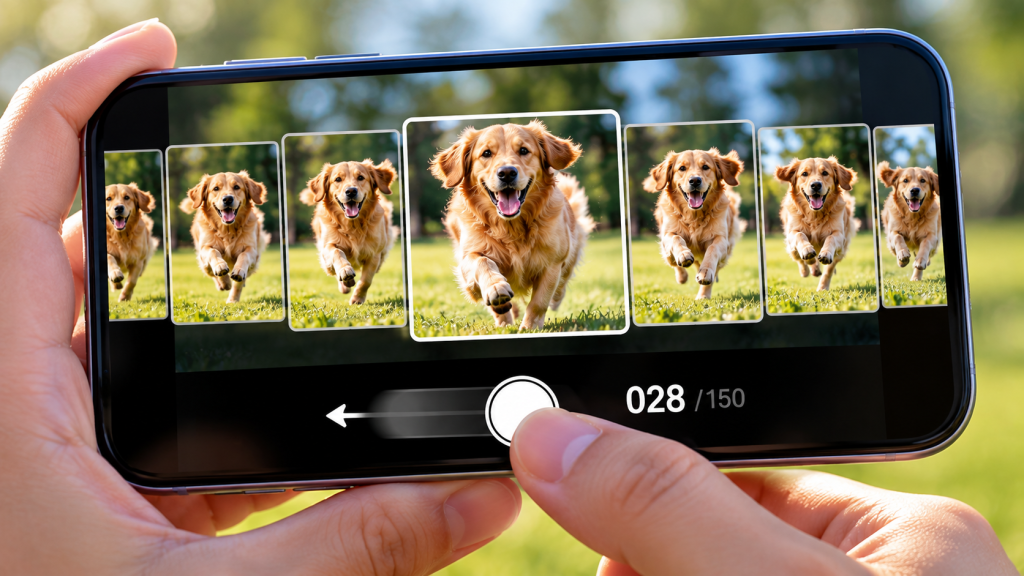
To take a burst photo on your iPhone 16, open the Camera app. Tap the white shutter button. Quickly slide it to the left. Hold your finger there. The phone will take many fast shots. Let go when the action stops. You now have a burst!
Why Burst Mode is a Great Tool
Action scenes are hard to shoot. A normal tap might be too slow. You might miss the big jump. You might miss the winning goal. Burst mode solves this. It takes ten frames per second. It shoots a rapid group of pictures. You get many choices. You just look at the group. You pick the best one. Then, you delete the rest. Your photos stay sharp. You get the perfect look. It is the best way to shoot fast moving things.
How to Take Burst Photos on iPhone 16
The touch screen makes bursts easy. You do not need to push hard. You just need a quick thumb. Follow these easy steps.
-
Unlock your phone.
-
Open your Camera app.
-
Stay in the normal Photo mode.
-
Put your subject in the frame.
-
Touch the white shutter button.
-
Quickly slide the button to the left.
-
Keep your finger pressed down.
-
Watch the number count up fast.
-
Let go of the screen to stop.
Do not hold the button without sliding. If you just hold it, you will record a video. You must slide it to the left.
Using the Volume Buttons for Bursts
Some people like real buttons. Real buttons feel like a real camera. You can use your volume keys to shoot a burst. First, you must change a quick setting.
-
Open your phone Settings app.
-
Scroll down and tap Camera.
-
Turn on the switch for “Use Volume Up for Burst”.
-
Close the Settings app.
-
Open your Camera app.
-
Press and hold the Volume Up button.
-
Let go when the action is over.
This helps keep the phone steady. Your hands will not shake as much.
How to Take Burst Photos on iPhone 16 Pro Max
The Pro Max model is big. The screen is huge. But the steps are the exact same. You still slide the button to the left. The Pro Max has great lenses. It catches more light. This means your bursts will look very clear. You can also use the volume key trick here. Apple explains more camera tricks in their official iPhone user guide. It is good to read up on your specific lenses.
How to Take Burst Photos on iPhone 16 with Timer
Sometimes you want to be in the photo. You need a timer for this. Apple changed how this works. You cannot pick burst mode and timer at the same time. The timer now takes a short burst on its own. It is built in.
-
Open the Camera app.
-
Tap the small up arrow at the top.
-
Tap the clock icon at the bottom.
-
Pick 3 seconds or 10 seconds.
-
Tap the shutter button once.
-
Run to your spot and pose.
-
The phone will count down.
-
It will snap ten fast photos.
This is great for group jumps. Everyone will look sharp.
How to View and Save Your Best Shots
Taking the photos is just part one. Now you must pick the best one. A burst saves as one stack in your gallery.
-
Open your Photos app.
-
Tap on the new burst stack.
-
Tap the word “Select” at the bottom.
-
Swipe left and right to see all the shots.
-
Tap the circle on the best ones.
-
Tap “Done” at the top right.
-
Choose “Keep Only Favorites”.
This saves space. Your phone will delete the bad shots.
Freeing Up Phone Storage Space
Bursts take up a lot of room. Ten photos a second adds up fast. A five-second burst is fifty photos. This can fill your phone quick. You must clean up your files. Always check your storage space. Delete old bursts you do not need. Move good photos to the cloud. A full phone runs slow. A full phone might miss the next shot.
Good Light is Key for Fast Action
Fast action needs fast shutter speeds. Fast shutter speeds need bright light. Bursts look best outdoors in the sun. They look great at the park. If you shoot in the dark, bursts get blurry. The sensor needs light to freeze the action. The team at DxOMark camera sensor tests proves this. More light means less blur. Turn on all room lights if you are inside.
How to Take Burst Photos on iPhone 13, iPhone 14, and iPhone 15
Do you have an older phone model? You are in luck. The rules are the exact same for past phones. Apple likes to keep basic tools the same.
-
How to take burst photos on iPhone 13: Slide the shutter left.
-
How to take burst photos on iPhone 14: Slide the shutter left.
-
How to take burst photos on iPhone 15: Slide the shutter left.
The older chips are still very fast. They catch action very well. Just make sure your lens is clean.
How to Take Burst Photos on iPhone 17 and iPhone 17 Pro Max
Tech moves fast. New phones come out every year. We expect the burst mode to stay the same. How to take burst photos on iPhone 17? You will likely just slide the button left. Apple keeps the good tools. The iPhone 17 Pro Max might get new buttons. It might get a faster chip. This means it could take more than ten frames a second. We will see soon.
Also read: Best DSLR Camera For Professional Photography: Pro Guide
Expert Tip
Expert Tip: Always lock your focus before you start a burst! Tap the screen on your subject. Hold your finger down for two seconds. A yellow box will flash. You will see “AE/AF Lock” at the top. Now your focus is locked. Your burst will stay sharp even if the subject moves fast across the frame.
Camera Burst Mode Storage Guide
| Burst Length | Photos Taken | Estimated Space Used | Good For This Action |
| 1 Second | 10 Photos | ~30 MB | A quick jump or a golf swing. |
| 3 Seconds | 30 Photos | ~90 MB | A dog running across the yard. |
| 5 Seconds | 50 Photos | ~150 MB | A kid riding a bike down the street. |
| 10 Seconds | 100 Photos | ~300 MB | A long race or a dance move. |
When to Get Professional Help or a Second Opinion
Phones are tough but they can break. The camera parts are small and fragile. Sometimes software tricks do not work. Sometimes the phone needs real help.
-
Does the Camera app crash when you slide the button?
-
Do your bursts look cloudy or full of spots?
-
Does the phone get super hot when you shoot?
-
Is the glass lens cracked on the back?
Do not try to fix the lens glass yourself. Phones have tight water seals. If you pry the glass, you break the seal. Water will ruin the phone. Go to a trusted repair shop. The Camera & Imaging Products Association sets high build standards. Apple follows strict rules too. Let a pro fix hardware faults. It saves you money in the long run.

Common Mistakes Camera Buyers Should Avoid
Shooting action is tricky. People make simple errors. Here are the top mistakes to avoid with bursts.
-
Holding the button too long: Do not shoot for ten seconds if the jump takes one second. You will just fill your phone with junk photos.
-
Forgetting to slide left: If you just press and hold, you get a video. You must slide to the side for photos.
-
Moving the phone too much: Keep your hands steady. Do not swing the phone wildly. Let the subject run through the frame.
-
Shooting in dark rooms: Low light makes bursts blurry. Go outside or turn on bright lights.
-
Never deleting the bad shots: A burst makes one good photo and nine bad ones. Delete the bad ones right away.
FAQs
What happens if I just hold the shutter button on iPhone 16?
If you hold it down, the phone records a QuickTake video. You will not get burst photos. You must slide the button to the left to get a burst.
How many burst photos can the iPhone 16 take?
It takes about ten photos per second. It will keep shooting as long as you hold the button. It stops when you let go or run out of space.
Does burst mode lower the photo quality?
No, the quality stays very high. The phone uses a lot of power to process each frame. You still get great, sharp photos.
Can I share an entire burst with a friend?
You cannot easily share the whole stack. It is best to pick your favorite shot. Then you share that single best photo.
Why are my burst photos blurry?
Fast motion needs bright light. If your shots are blurry, the room is too dark. Move outside or into the sun for crisp action shots.
Does burst mode work on the selfie camera?
Yes, it does. You can slide the front shutter button to the left. This is great for group selfies when people blink.
You are now ready to catch fast action. Your iPhone 16 is a powerful tool. The burst mode is easy to use. Slide the button to the left. Hold it tight. Watch the numbers fly. Keep your focus locked and shoot in bright light. The experts at groups like the National Press Photographers Association know that timing is everything. Burst mode gives you perfect timing. Go outside today. Find a fast dog. Find a moving car. Practice your quick slide. You will see how great your shots can be. Start shooting and have fun!

1 thought on “How to Take Burst Photos on iPhone 16 and Catch Every Moment”