
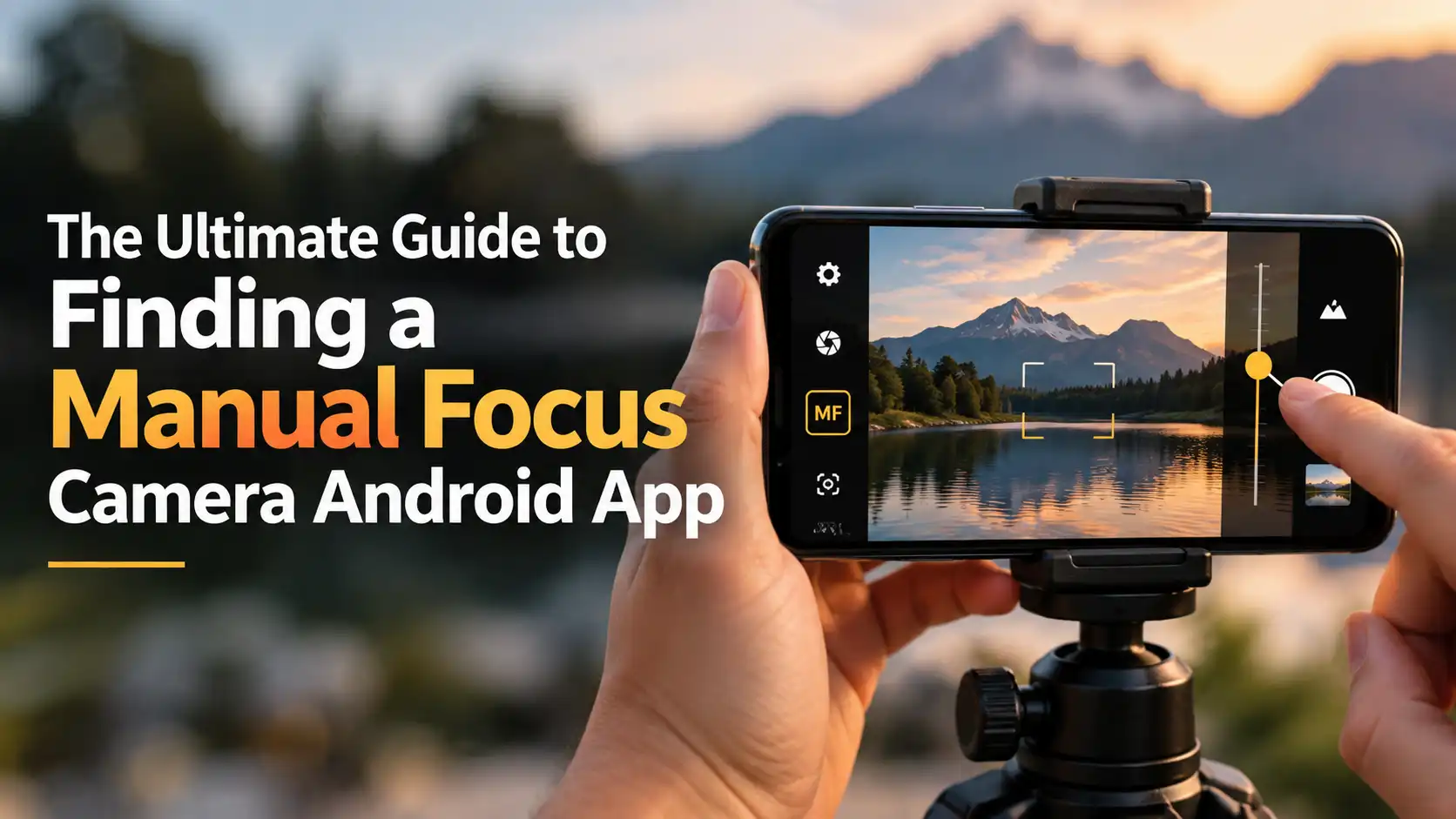
Are you tired of blurry phone photos? Your phone camera is very smart. But it is not perfect. Sometimes, it focuses on the wrong thing. You might want to shoot a flower, but the phone focuses on the background. You need a manual focus camera Android app to fix this problem. Taking control of your focus changes everything. It makes your photos look sharp and clear. It gives you that true pro camera feel on your phone. In this guide, I will show you how to choose the right app. You will learn what features matter most. Stop letting your phone guess. Let us take back control of your photos today.
Quick Answer
A manual focus camera Android app lets you choose exactly what part of your photo stays sharp. It completely overrides the phone auto-focus system. The best apps offer a smooth slider on your screen to adjust focus perfectly. Popular choices include ProCam X, Open Camera, and Manual Camera. These apps give you total creative control over your shots.
Why You Need a Manual Camera App
Your phone does a lot of work for you. It tries to guess what you want to shoot. Most of the time, it gets it right. But in some cases, the camera fails.
Macro shots are very tough. When you get close to a bug or a coin, the lens gets confused. It hunts for a subject. Low light is hard, too. In dark rooms, auto-focus cannot see well. It moves in and out and never locks on.
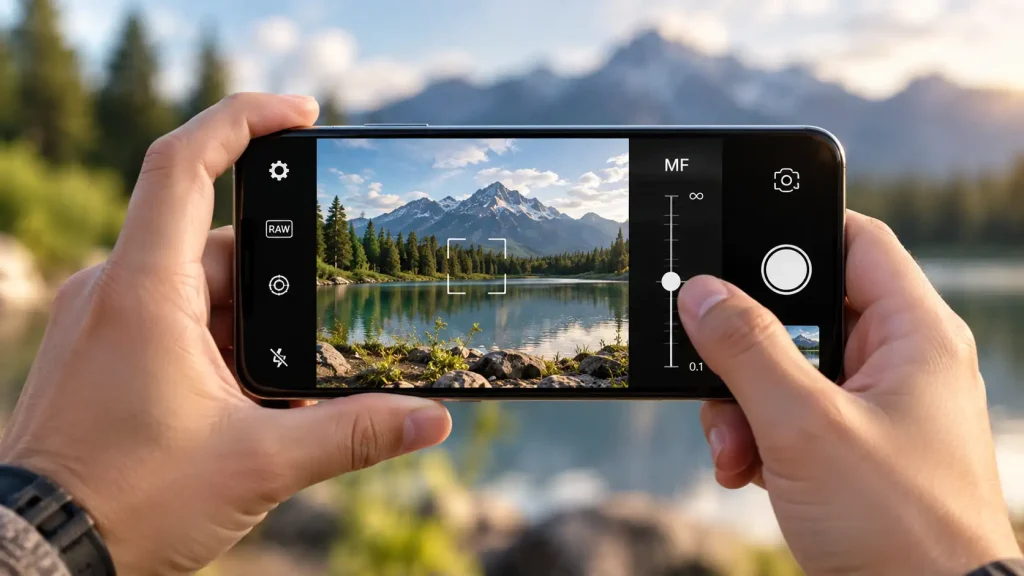
A manual camera app stops this guessing game. You slide your finger on the screen. The focus shifts exactly where you want it. You tell the camera what is important. You become the photographer, not just a button pusher.

Key Features of a Great Focus Camera App for Android
Not all apps are the same. You want an app that is fast and easy to use. Look for these key features before you download anything.
-
Focus Peaking: This is the best tool. It shows a bright color line on sharp edges. It tells you exactly what is in focus.
-
Shutter Speed Control: This freezes fast action. It stops motion blur.
-
ISO Control: This manages the light. It helps reduce grain in dark rooms.
-
RAW Image Support: This saves all the raw image data. It gives you much better files for editing later.
Modern phones have amazing lenses. Devices like the Samsung Galaxy S24 Ultra or Xiaomi 14 Ultra take great photos. But even these top phones get better with a dedicated app. According to the DxOMark camera sensor testing methodology, overall image quality depends on much more than just the hardware. Software control is a huge piece of the puzzle.
Top Manual Focus Camera Android Options
You have many great choices on the Google Play Store. Here are the top picks for your Android phone.
1. Open Camera
This is a fully free app. It has absolutely no ads. It offers full manual controls for your phone. You can easily adjust focus, ISO, and shutter speed. It is a great starting point for beginners. It is safe and very reliable.
2. ProCam X
This app feels like a real digital camera. It has a great menu layout. The focus slider is very smooth. You can lock your focus easily so it does not change. It costs a little bit of money, but it is worth the small price.
3. Adobe Lightroom
You might know Lightroom as a photo editor. But it also has a great built-in camera. It includes a strong focus camera app for Android feature. It highlights the sharp areas in yellow. This makes focusing very easy. Plus, you can edit the photo right after you take it.
4. ProShot
This app gives you deep control. The focus features are very strong. It has custom dials on the screen. It takes a little time to learn. But the results are very professional.
Expert Tip: Always turn on the “Focus Peaking” setting if your app has it. It highlights sharp edges in bright red or green. This makes manual focusing on a small phone screen much faster and highly accurate.
How to Use a Manual Camera App
Using manual focus is simple once you know the steps. Follow this easy guide to get a sharp shot every time.
-
Open your chosen manual camera app.
-
Find the focus icon on the screen. It often looks like a flower, a square, or says “MF”.
-
Tap the icon to turn off the auto-focus mode.
-
Look for the focus slider or dial on your screen.
-
Move the slider slowly up or down.
-
Watch the screen until your main subject is perfectly sharp.
-
Hold your phone very still.
-
Tap the shutter button to take your photo.
Also See: Best Manual Focus Camera Android: 5 Top Picks 2026
Understanding APK Files for Camera Apps
Sometimes a specific app is not in your normal store. You might look for a Manual Camera APK file on the internet. An APK is the raw install file for an Android app. You can download it directly from a website.
You must be very careful with APK files. Only use trusted and safe websites. Bad files can harm your phone or steal your data. If you are not sure, just stick to the Google Play Store. It is much safer for everyday users.
Auto Focus vs. Manual Focus
Which mode should you use? Both have good points. This table will help you decide.
When to Get Professional Help or a Second Opinion
Software cannot fix broken hardware. Sometimes your phone camera will not focus at all, no matter what app you use. This might not be a simple app issue. Your camera module hardware might be broken. The small lens cover might have a deep scratch.
Take your phone to a professional repair shop if you see these warning signs:
-
The camera lens makes a loud buzzing or clicking sound.
-
The image shakes wildly when you hold the phone perfectly still.
-
No manual app can make the image sharp at any distance.
-
You see dark black spots on the screen that do not go away.
Do not try to open your phone yourself. You will likely break the delicate water seal. Always use an authorized brand service center for camera hardware repairs.
Common Mistakes Camera Buyers Should Avoid
Do not make these simple errors when using your new manual apps. They can ruin a great photo.
-
Ignoring the lens glass: Always clean your lens first. Oil and smudges make everything look out of focus. Use a soft cloth.
-
Rushing the shot: Manual focus takes a little time. Breathe slowly. Hold the phone steady before you tap the button.
-
Forgetting to reset: Switch back# How to Choose a Manual Focus Camera Android App
Do your phone photos look soft? Your stock app tries its best. But it often fails. It focuses on the wrong thing. You lose the great shot. A manual focus camera Android app fixes this fast. You get full control of the lens. You stop the blur.
I test many camera tools in my work. I see this focus issue a lot. We will look at the best tools today. You will learn how to get sharp shots. You will learn what features matter most. We will make your phone act like a real camera.
Quick Answer
What is the quick fix? A manual focus camera Android app lets you control the lens. You use a slider on your touch screen. You pick what stays sharp. It stops the blur. You get clear photos in bad light. You can find free apps right now.
Why Your Phone Loses Focus
Your phone is very smart. But it is just a machine. It uses contrast to find focus. It looks for dark and light edges. It tries to make them sharp. This works well in bright sun.
It fails in dim light. The phone gets confused. The lens hunts back and forth. You miss the shot. The photo turns out soft.
Macro shots are hard too. You put the phone close to a bug. The phone focuses on the grass behind it. This ruins the shot. You need to take charge of the lens. You need a manual camera app to help you out.
What Does a Manual App Do?
A good app turns off the robot. It gives you a slider on your screen. You move this slider with your thumb. The lens shifts inside the phone. You see the change right away.
You decide when the shot is sharp. It is just like turning a ring on a big camera lens. It is simple to use. It gives you true creative control.
Experts at DPReview smartphone camera tests show that manual control helps a lot. It is the best way to get crisp macro shots. The phone stops guessing. You make the final call.
Focus Peaking Explained
This is a great tool. Many pro apps have it. It paints bright lines on the screen. These lines are red or green. They sit on sharp edges.
You move the focus slider. The colored lines move too. When the lines hit your main subject, you stop. You take the picture.
It is very fast. It is very precise. You do not have to squint. The app tells you what is sharp. Always turn on focus peaking if you have it. It will save you time.
Top Features to Look For
You want the best manual focus camera android app. You must look for key features. Not all apps are the same.
Look for these tools:
-
Focus Slider: This is the main tool you need.
-
Focus Peaking: This shows what is sharp.
-
RAW Support: This saves huge image files for editing.
-
Shutter Speed: This lets you freeze fast motion.
-
ISO Control: This helps you in dark rooms.
When you have these tools, your phone is very strong. You can shoot in the dark. You can take great close-up shots.
Setting Up Your Camera App
You must set up the app right. If you do not, it will not work. Follow these short steps.
-
Download the app from the store.
-
Open the app on your phone.
-
Open the main settings menu.
-
Find the Camera2 API switch.
-
Turn the Camera2 API on.
-
Restart the app.
The Camera2 API is a code link. It lets the app talk to the lens. If you skip this, the slider will not move the lens. You must turn this on.
The Best Apps to Try
You have many good choices. Let us look at the top picks.
Open Camera This is a great choice. It is totally free. It has no ads. It has a manual slider. It gives you full control. It works on most phones.
ProCam X This app is also very good. The layout is very clean. It feels like a real camera. It is a top focus camera app for Android devices. The free version is nice. The paid version adds more pro tools.
Manual Camera DSLR This app is fast. It is easy to use. You get a nice focus ring on the screen. You can shoot RAW files. It helps you take clear shots in the dark.
Understanding Phone Sensors
We know that small sensors need good software. You can read how DxOMark mobile testing standards rate different phone sensors. They test how well phones find focus.
The hardware matters a lot. A big sensor takes in more light. But the app matters just as much. A good app tells the hardware what to do. You need both to get great shots.
Downloading an APK File
Some phones do not have the Google Play Store. You might need a manual focus camera android apk file. This is an app file. You download it from a web site.
You must be very careful here. Only use safe web sites. A bad manual camera APK can harm your phone. It can bring bad software. It can break your phone system.
It is best to stick to known app stores. If you must use an APK, scan it first. Keep your phone safe at all times.
What About Your Friends?
Do you have friends with iPhones? They might want help too. Their phones also guess wrong. They can find a manual camera app for iPhone free on their app store.
Apps like Yamera do this well. They work just like the Android apps. They give slider control. You can help your friends get sharp shots too.
[IMAGE PLACEHOLDER 2] Placement Right before the When to Get Professional Help section. Purpose: To show the physical camera module on the back of a phone. Caption: The tiny lenses on the back of your phone. Alt Text: Close up of a smartphone camera lens module on the back of the phone. Image Prompt: A macro shot of the camera bump on the back of a modern smartphone. The glass lenses are clean and reflect a bright light source. Recommended Size: 900×600 px Suggested File Name: phone-camera-lens-module Suggested Surrounding Text: The lens hardware is very small and fragile.
When to Get Professional Help
Sometimes, an app does not fix the blur. Your phone lens has a tiny motor. It moves the glass parts.
If you drop the phone, this motor can break. The lens gets stuck. Dirt can also get inside the glass. An app cannot fix broken hardware.
If the slider does nothing, stop. Do not shake the phone. Do not open the phone yourself. Take it to a real repair shop. They need to fix the camera module. They have the right tools.
Expert Tip: If your phone camera hums or buzzes when you open the app, the focus motor is broken. Stop using the camera at once. Turn the phone off. Take it to a repair shop. A manual app will not fix a loud buzzing motor.
Repair vs. App Fix
How do you know what to do? Look at this table. It will help you decide.
In my experience, software fixes most focus bugs. But a hard drop will always break the tiny parts. You must know when to seek help.
Keeping Your Lens Clean
A dirty lens will ruin your focus. The phone sees a smudge. It tries to focus on the smudge. The whole picture gets soft.
You must clean the glass. Do not use your shirt. Your shirt has dust on it. Dust will scratch the glass.
Use a soft cloth. Use a real lens wipe. Wipe the glass gently. The CIPA camera care guidelines tell us that clean glass makes a huge difference. Always check the glass before you shoot.
Common Mistakes Camera Buyers Should Avoid
Users make mistakes with these apps. Keep these short tips in mind. They will save you time.
-
Forgetting to clean the lens: A dirty lens stops focus.
-
Skipping the Camera2 API: The slider will not work without it.
-
Shaking the phone: Keep your hands still when you focus.
-
Ignoring focus peaking: This tool saves you time. Use it.
-
Using bad APK sites: Do not risk your phone health.
-
Shooting too fast: Take your time to slide the wheel right.
Avoid these small traps. You will get much better photos. Your phone will take pro shots.
FAQs
Are manual camera apps free?
Many good apps are completely free. Open Camera is a great free choice. Some apps ask you to pay for pro tools.
Does a manual app drain my battery fast?
Yes, it can. The screen stays bright. The phone works hard. Your battery will drain faster than normal.
Can I shoot RAW files with these apps?
Most pro apps let you shoot RAW. You must turn on the Camera2 API first. Then you can save big files.
Will an app fix my cracked phone lens?
No. An app is just software. It cannot fix cracked glass. You must go to a repair shop for broken glass.
What is focus peaking again?
It is a visual tool. It puts bright red lines on sharp edges. It shows you exactly what is in focus on your screen.
Can I use these apps for video?
Yes. Most of these apps let you slide focus while you record video. This makes your videos look like a movie.
Do I need a tripod to use manual focus?
You do not need one. But a tripod helps a lot. It keeps the phone still. It makes the slider much easier to use.
Conclusion
You now know how to fix soft photos. A manual focus camera Android app gives you full control. Your phone will stop guessing. You will use a slider to find the sharp edge. You will get great macro shots. You will shoot well in dark rooms.
Check your lens for dust first. Download a safe app from a trusted store. Turn on the Camera2 API. Take your time and play with the slider. Start taking clear, sharp photos today.
