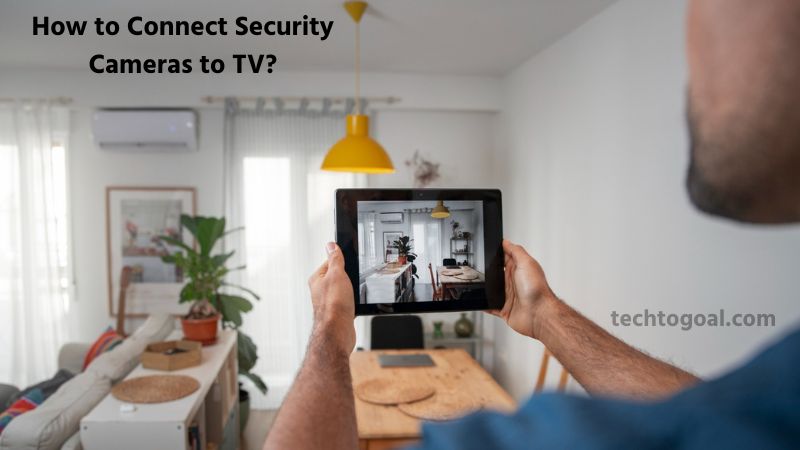
How to Connect Security Cameras to TV: In 2026, home security has moved far beyond checking tiny notifications on your smartphone. While mobile apps are convenient, nothing beats the clarity and peace of mind of seeing your property in high definition on a 65-inch 4K screen.
Whether you want to keep an eye on the front porch while watching a movie or need a dedicated security dashboard in your home office, knowing how to bridge the gap between your cameras and your television is a must-have skill for the modern homeowner.
However, with so many brands, from Arlo and Ring to Eufy and Reolink, finding the right connection method for your specific setup can feel overwhelming. Should you use a physical cable, a third-party streaming device, or a native smart TV app? In this comprehensive guide, we’ll walk you through the most efficient ways to connect your security cameras to your TV in 2026, ensuring you never miss a moment of what matters most.
Things to Know Before Connecting Security Camera to TV
Make sure you are aware of the sort of camera you have before attaching it to your TV. To prevent connection problems, make sure your television is compatible with the camera’s output. This will assist you in choosing the optimal connecting technique.
What Type is Your Security Camera?
Because of their distinct technological characteristics, different security cameras require different ways to connect to your TV. Comprehending these distinctions is essential to a fruitful relationship. Here are a few common kinds:
| Camera Type | How to Identify | Recommended Way to Connect to TV |
| PoE Camera (wired) | Connect via Ethernet cables, usually labeled “PoE” port | 1. NVR + HDMI
2. PoE Switch + NVR + HDMI |
| Wireless Camera | Cable-free setup
Rely on Wi-Fi or Bluetooth to send video feeds to connected devices |
Cast your screen to the TV via the mobile app (e.g., eufy Security App → Chromecast / Fire TV). |
| Analog Camera (CCTV Camera) | Connected via coaxial or RCA cable, the interface is usually BNC | Connect to DVR and output to TV via HDMI. |
Is Your TV Compatible with the Camera?
Make sure your TV is compatible with the security camera before connecting it to your TV. What you should look for is as follows:
- Supported TV connection: Verify that your TV has the HDMI, AV, or BNC connection required to connect the security camera. You could think about using a converter if your TV doesn’t have the required input.
- Video Resolution: It’s crucial to make sure your TV can display the security camera’s video quality because of the particulars of high-resolution footage. For example, high-definition video feeds from HD-over-Coax security cameras might not be compatible with some older TV models. To receive the highest video quality, make sure your TV is compatible.
- Smart TV Integration: You should think about wirelessly connecting your security camera to your TV if you have a smart TV with built-in apps for receiving and presenting camera feeds. Through the interface of your smart TV, this integration may offer a fantastic watching experience and easy access to your camera’s feed.
We will examine four distinct techniques for connecting various security cameras after discussing the various kinds of security cameras and the required setup.
How to Connect Security Camera to TV with DVR
Connecting security cameras to a TV using a DVR (Digital Video Recorder) is the most traditional and reliable method available. This physical connection ensures a zero-latency, high-definition feed that doesn’t depend on your Wi-Fi signal strength. In 2026, most DVRs have evolved to support 4K output and smart integration, making the setup process straightforward but vital to get right for the best image quality.
????Read More????How to Clean Mirrorless Camera Sensor?
Here is the professional, step-by-step guide to connecting your security system to a TV via a DVR:
To connect your security camera to your TV with a DVR, you’ll need Ethernet and HDMI cables.
- Step 1 – Using the Ethernet cables, connect the camera to the DVR.
- Step 2 – Use the HDMI cable to connect your DVR to the TV.
- Step 3 – Turn on the TV and the DVR and configure the correct source input.
- Step 4 – Using the DVR interface, you can view the camera feed on your TV.
How to Connect Security Camera to TV with NVR
Connecting security cameras to a television using an NVR (Network Video Recorder) is the gold standard for high-definition home surveillance in 2026. Unlike older analog systems, an NVR processes digital data sent from IP cameras, resulting in much sharper images and more advanced features. This setup provides a stable, “always-on” monitoring station that doesn’t rely on your internet bandwidth to display footage.
Follow this professional, step-by-step guide to integrate your NVR system with your TV:
Step 1: Connect the NVR to the TV via HDMI
To get the highest possible resolution (4K or 8K) from your IP cameras to your screen, a physical cable is necessary. In 2026, HDMI 2.1 cables are recommended to handle the high data rates of modern security footage.
- Plug one end of the HDMI cable into the HDMI Out port on the back of the NVR.
- Connect the other end to an available HDMI In port on your TV.
Pro Tip: Using a high-quality cable ensures there is no flickering or signal loss, especially if the cable run is longer than 10 feet.
Step 2: Connect IP Cameras using PoE (Power over Ethernet)
Most modern NVRs come with built-in PoE ports, which simplify the installation by sending both power and data through a single Ethernet cable (Cat5e or Cat6).
- Run an Ethernet cable from each IP camera back to the NVR.
- Plug the cables into the PoE ports on the back of the NVR unit.
The NVR will automatically detect the cameras, assign them an IP address, and start receiving the digital video stream. This “Plug and Play” feature makes NVRs much easier to set up than they were in the past.
Step 3: Power On and Select the TV Input
Once the hardware is linked, it’s time to boot the system and sync the display.
- Plug in the NVR’s power adapter and turn the unit on.
- Using your TV remote, press the Source or Input button.
Select the HDMI port that corresponds to your NVR (e.g., HDMI 1). You should now see the NVR’s startup sequence or the login dashboard on your TV screen.
Step 4: Configure the Setup Wizard
Upon the first boot, most NVRs (like those from Reolink, Hikvision, or Lorex) will launch a setup wizard to help you customize the system.
- Connect a USB mouse to the front or back of the NVR to navigate the menus.
- Follow the on-screen prompts to set a secure password, adjust the date/time, and format the internal hard drive for recording.
If you want to access your cameras on your phone as well, connect the NVR to your home router using an additional Ethernet cable.
Step 5: Optimize Display and Grid Settings
- The final step is to ensure the footage looks perfect on your large-screen TV.
- Navigate to Display Settings in the NVR menu and set the output resolution to match your TV (e.g., 3840 x 2160 for 4K).
- Customize your Grid View. You can choose to see one camera in full screen or a multi-pane view (2×2, 3×3, etc.) to monitor all angles of your home simultaneously.
In 2026, many NVRs also allow for “spot monitoring,” where the TV stays on one main camera but automatically switches to a different feed if motion is detected.
How to Connect Security Camera to TV without DVR or NVR Recorder
You may connect your security camera directly by HDMI, Ethernet, or Wi-Fi if you wish to see its live stream on a TV without a DVR or NVR. For a single camera or a simple setup without the need for sophisticated recording or multi-camera administration, this approach is ideal. The primary methods for connecting your security camera to a TV without a recorder are described below.
????Read More????How to Detect Hidden Cameras
Using cables for HDMI (HDMI ports are available for TVs and cameras.)
It’s quite easy to link your security camera to your TV using an HDMI connection if both your camera and TV have HDMI ports. There are just a few stages involved in this easy process:
- Step 1: Locate the HDMI port on your TV and security cameras.
- Step 2: To switch to HDMI input, connect them using HDMI cables and turn on your TV.
- Step 3: You may now see security camera live feeds on your television.
Using Ethernet Cables (For TVs with Ethernet ports or adapters)
Many modern TV models come equipped with an Ethernet connection. If so, you might try using an Ethernet wire to directly link your security camera to your TV. If this doesn’t work, you might want to think about using an Ethernet-to-HDMI converter to link your camera to your TV:
- Step 1: Attach Ethernet wires to your security camera, and attach an Ethernet-to-HDMI converter to the other end.
- Step 2: Attach the HDMI output of the adapter to your TV’s HDMI input.
- Step 3: Switch to the HDMI input after turning on your TV.
How to Connect a Security Camera to a Smart TV
For a more practical solution, you may wirelessly link your security camera to your Smart TV. A WiFi-capable camera that is connected to your home internet is necessary for this strategy.
- Step 1: Link your home WiFi network to your security camera.
- Step 2: Download the relevant app from the manufacturer of the camera.
- Step 3: Use your phone to cast the live video feed to your TV.
Note: You may quickly and conveniently see the footage from the camera by mirroring your phone’s video stream on some devices, such as Apple TV and Chromecast.
How to Connect Security Cameras to TV Wirelessly?
If you want to connect CCTV to TV wirelessly or without NVR, you have the following options:
- Use IP-camera-to-HDMI converter/decoder
- Set up DLNA server on PC and stream IP videos on the TV.
- Use Google Chromecast or Apple TV
- Use streaming apps on smart TVs
Risks of Connecting CCTV to a TV Without an NVR
Connecting a CCTV or security camera directly to a TV without using an NVR (Network Video Recorder) may seem convenient, but it comes with several important risks and limitations. Understanding these risks can help you avoid security gaps, data loss, and performance issues in your surveillance setup.
- No Video Recording or Playback: One of the biggest risks of connecting CCTV cameras to a TV without an NVR is the lack of video recording. In this setup, the TV only displays live footage. If an incident occurs, there is no saved video to review later. This makes it impossible to collect evidence, track suspicious activity, or share footage with authorities.
- Limited Camera Compatibility: Most modern CCTV cameras are designed to work with NVRs or DVRs, not directly with TVs. Without an NVR, you may face connection issues, unsupported video formats, or unstable live feeds. Some IP cameras won’t display at all without proper recording hardware.
- No Remote Access or Monitoring: An NVR allows you to view your cameras remotely through a mobile app or web browser. Without it, your CCTV system becomes location-dependent, meaning you can only see the footage when physically in front of the TV. This reduces overall security and convenience.
- Increased Security Vulnerabilities: NVRs often include encryption, user authentication, and firewall protection. When cameras are connected directly to a TV, these security layers are missing. This increases the risk of unauthorized access, hacking, or data interception, especially if cameras are connected via Wi-Fi.
- No Motion Detection Alerts: Without an NVR, you lose access to smart features like motion detection alerts, push notifications, and event tagging. The system cannot notify you when movement is detected, forcing you to constantly monitor the TV manually.
- Poor Video Management and Organization: An NVR organizes footage by date, time, and camera. Without it, there is no structured way to manage multiple camera feeds. Switching between cameras becomes manual, confusing, and inefficient, especially in larger setups.
- Lower Video Quality and Stability: NVRs optimize video streams for stability and quality. Direct camera-to-TV connections may suffer from lag, frame drops, resolution mismatch, or flickering, resulting in a poor viewing experience and unreliable surveillance.
- No Backup or Storage Options: An NVR provides internal storage and backup options (HDD, cloud, USB). Without it, you have no way to store footage, meaning all video data is lost once the camera feed stops or power goes out.
- Difficult System Expansion: If you plan to add more cameras later, connecting them directly to a TV becomes complicated or impossible. NVRs are designed to scale easily, while TV-only setups are not future-proof.
- Higher Risk During Power or Network Failures: NVRs can resume recording automatically after power outages. Without one, your system may fail completely during interruptions, leaving blind spots and unmonitored periods.
While connecting CCTV cameras directly to a TV without an NVR may work for basic live viewing, it significantly reduces the effectiveness, reliability, and security of your surveillance system. For long-term safety, recording, remote access, and advanced features, using an NVR is strongly recommended.
What are the reasons to connect a security camera to a TV?
In 2026, while mobile apps provide on-the-go convenience, connecting your security cameras to a TV has become a game-changer for comprehensive home monitoring. It transforms your living room into a high-tech command center, offering a level of clarity and collective safety that a small smartphone screen simply cannot match.
????Read More????How to Reset Blink Cameras: 8 Easy Steps to Follow
Here are the primary reasons why you should connect your security cameras to your TV in 2026:
- Real-Time Monitoring on a Bigger Screen: Connecting your security camera to a TV allows you to view live footage on a large display, making it much easier to monitor details such as faces, license plates, or suspicious movements. Compared to a smartphone or tablet, a TV provides better visibility, especially for homes, offices, or shops where continuous monitoring is important.
- Improved Home Security Awareness: Displaying camera feeds on your TV helps everyone in the household stay aware of what’s happening around the property. Whether it’s checking who’s at the door or monitoring outdoor areas, this setup adds an extra layer of security by keeping threats visible at all times.
- Easier Monitoring for Elderly or Non-Tech Users: Many elderly people or non-tech-savvy users find TVs easier to operate than mobile apps. Connecting security cameras to a TV removes the need for smartphones or complex apps, allowing users to simply turn on the TV and instantly view camera footage.
- Convenient Multi-Camera Viewing: Most modern systems allow multiple security cameras to be displayed on one TV screen. This makes it convenient to monitor different areas such as the front yard, backyard, garage, and entrances simultaneously without switching between devices.
- Enhanced Business and Office Surveillance: For businesses, connecting security cameras to a TV enables staff or security personnel to monitor customers, employees, and restricted areas in real time. This improves loss prevention, staff safety, and overall situational awareness during working hours.
- Faster Response to Security Incidents: Seeing live camera footage on a TV helps you respond quickly to suspicious activity. Whether it’s an intruder, package theft, or unusual movement, immediate visual access allows faster decision-making and action.
- Ideal for Continuous Monitoring Areas: In locations like reception areas, guard rooms, or control centers, a TV-connected camera system is ideal for nonstop monitoring. TVs can remain on for long periods, providing uninterrupted surveillance without draining phone or tablet batteries.
- Better Viewing Experience for Recorded Footage: Watching recorded security footage on a TV makes it easier to review past incidents. Larger screens provide clearer playback, helping you identify important details that may be missed on smaller devices.
- Reduced Dependence on Mobile Devices: By using a TV for surveillance, you reduce reliance on smartphones, which may run out of battery, lose connectivity, or be unavailable. A TV-based setup ensures consistent access to camera feeds at home or in the workplace.
- Smart Home Integration Benefits: In 2026, many smart TVs integrate seamlessly with security camera systems and voice assistants. This allows you to view camera feeds using voice commands or smart home dashboards, creating a more connected and efficient security setup.
FAQs
Can I connect security cameras directly to my TV?
Yes, you can connect some security cameras directly to a TV using HDMI, VGA, or AV cables. However, most modern systems require a DVR, NVR, or smart app for proper viewing and recording.
Do I need a DVR or NVR to connect security cameras to a TV?
In most cases, yes. A DVR (for analog cameras) or NVR (for IP cameras) is needed to manage live feeds, recordings, and playback on your TV.
How do I connect security cameras to a smart TV?
You can connect cameras to a smart TV using a DVR/NVR via HDMI or by installing the camera brand’s app if the TV supports it (Android TV, Fire TV, etc.).
Can I view wireless security cameras on my TV?
Yes, wireless cameras can be viewed on a TV through a compatible NVR, streaming device (like Fire Stick or Chromecast), or a smart TV app.
What cables are needed to connect CCTV cameras to a TV?
Common cables include HDMI, VGA, AV (RCA), or Ethernet cables, depending on your camera system and TV input options.
Is it possible to connect security cameras to a TV without internet?
Yes, you can view live camera footage on a TV without internet if you use a DVR/NVR and direct cable connection. The Internet is only needed for remote access.
Why is my security camera not showing on the TV?
This could be due to incorrect input selection, loose cables, incompatible resolution, or issues with the DVR/NVR setup.
Can I connect multiple cameras to one TV?
Yes, a DVR or NVR allows you to connect and display multiple camera feeds on a single TV screen simultaneously.
Is it safe to connect security cameras directly to a TV?
It’s safe for basic viewing, but without a DVR or NVR, you may lose recording, playback, and security features.
Which TVs work best with security camera systems?
Smart TVs with HDMI ports work best, especially those compatible with Android TV, Fire TV, or camera apps from brands like Hikvision, Reolink, or Lorex.
Conclusion
As we move further into 2026, the integration between security systems and home entertainment is more seamless than ever. Whether you choose the rock-solid reliability of an NVR/DVR hardware connection or the modern flexibility of wireless Smart TV apps, displaying your camera feeds on a large screen is a significant upgrade for your home’s safety. It transforms your TV from a mere entertainment box into a powerful, high-definition security command center.
Ultimately, the best connection method is the one that fits your lifestyle and technical comfort level. By following the steps outlined in this guide, you can ensure that your property is always under a watchful eye, providing you and your family with the security you deserve in this digital age.

3 thoughts on “How to Connect Security Cameras to TV in 2026 (Easy Steps)”