
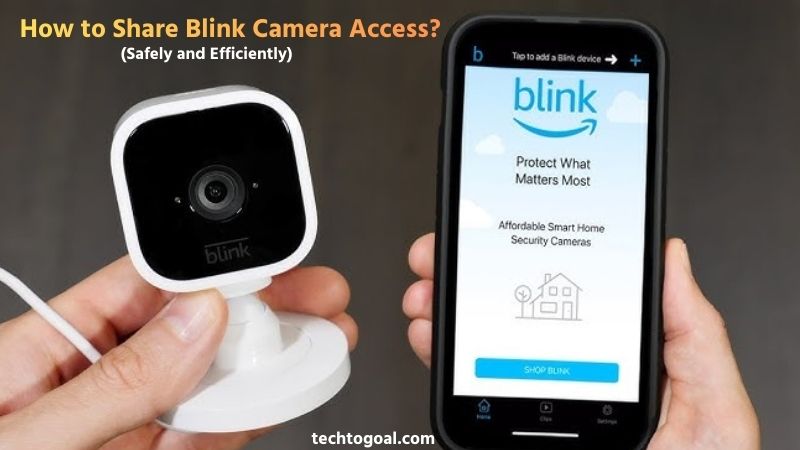
How to share Blink camera access: Blink cameras have become a household favorite for smart security, thanks to their sleek design, long battery life, and seamless integration with Alexa. But one of the most common questions new users ask is, “How do I let my spouse, roommate, or family member see the camera feed on their own phone?”
Whether you want to share the responsibility of monitoring your front door or simply want everyone in the house to stay alerted, knowing how to grant access properly is key to a collaborative home security setup.
Unlike some other smart home brands that allow you to “invite” a guest user via their email address, Blink currently operates on a single-account model. This means sharing access requires a slightly different approach than you might expect. Navigating this process can be tricky, especially when you factor in security features like Two-Factor Authentication (2FA) and device verification.
In this complete guide, we will break down the exact steps to share your Blink camera access safely and efficiently. We’ll cover how to manage multiple logins, the pros and cons of sharing your credentials, and the essential security tips you need to follow to ensure your private footage stays in the right hands. Let’s get your whole team connected!
How to Share Blink Camera Access
Sharing access to your Blink camera system is a common necessity for families, roommates, or business partners who need to monitor the same property. However, it is important to understand that Blink does not currently offer a “Guest Invite” or “Secondary User” feature. Instead, sharing access requires sharing the master account credentials.
????Read More????How To Use Disposable Camera?
Here is the professional, step-by-step guide to sharing your Blink camera access while maintaining security.
Step 1: Install the Blink App on the Secondary Device
The first step for the person you want to share access with is to download and install the Blink Home Monitor app on their smartphone or tablet. Both iOS and Android users may access it. Ensure they do not create a new account; instead, they will be using your existing login details to access the system.
Step 2: Share Your Login Credentials
Since Blink uses a single-account system, you must provide the person with your Blink account email and password. This person will now have the same level of control as you do, including the ability to view live feeds, arm/disarm the system, and delete clips. Because of this, you should only share these details with someone you trust implicitly.
Step 3: Navigate Two-Factor Authentication (2FA)
Security is a priority for Blink, so when the second person attempts to log in, Blink will trigger a Two-Factor Authentication (2FA) request. A 6-digit verification code will be sent to the primary account holder’s email address or phone number.
You must receive this code and provide it to the second person immediately, as the code usually expires within a few minutes. Once entered, their device will be “authorized.”
Step 4: Verify the New Device
After entering the 2FA code, the secondary user may be asked to verify the device through a link sent to your email. As the primary owner, you should check your inbox and confirm the login attempt. Once verified, the second person will have full access to all cameras connected to that Sync Module and can begin receiving notifications and viewing footage.
Step 5: Go to Account Settings
Once you’re logged into the Blink app, tap the Account or Settings option, usually located in the bottom or side menu. This section contains all account-level controls, including user access and sharing options.
Step 6: Select the Camera System You Want to Share
If you have multiple Blink systems or Sync Modules, choose the specific camera system you want to share. Sharing access applies to the entire system connected to that Sync Module, not individual cameras.
Step 7: Invite a New User
Look for the option labeled “Invite User,” “Shared Access,” or “Manage Users.” Enter the email address associated with the other person’s Blink account. Double-check the email address to avoid sending the invite to the wrong user.
Step 8: Send the Invitation
After entering the email address, send the invitation. The invited user will receive an email notification asking them to accept access. Until they accept, the shared access will remain pending.
Step 9: Accept the Invitation
The invited person must open the email and accept the invitation. Once accepted, they can log into the Blink app and view the shared camera system from their own account.
Step 10: Confirm Shared Access
After the invitation is accepted, check the Blink app to confirm that the user now has access. They should be able to view live feeds, receive motion alerts, and monitor activity depending on Blink’s current sharing limitations.
Step 11: Manage Multiple Users and Notifications
Once multiple people are logged into the same account, everyone will receive push notifications by default. If the secondary user finds the alerts distracting, they can customize their own notification settings within the app on their specific device without affecting your settings. This allows you to stay alerted while they simply check the feed when necessary.
Important Things to Know About Blink Camera Sharing
Blink camera access sharing provides viewing privileges, but the primary account holder remains in full control. Shared users typically cannot change system settings, delete cameras, or modify account-level security options. This ensures your home security stays protected.
Common problems & solutions
Even though the Blink app is designed to be user-friendly, users may occasionally face issues when sharing camera access. Most of these problems are easy to fix once you understand the cause. Below are the most common Blink camera sharing problems along with clear, practical solutions.
Problem 1: Invitation Email Not Received
One of the most common issues is that the invited user does not receive the sharing invitation email. This usually happens due to a mistyped email address or the email being sent to the spam or junk folder.
Solution:
Double-check the email address you entered in the Blink app and ask the recipient to check their spam folder. If needed, resend the invitation from the app.
Problem 2: Invited User Cannot See the Camera
Sometimes the invited user accepts the invitation but cannot see the camera system in their Blink app. This often occurs if the invitation was not fully accepted or the app needs to refresh.
Solution:
Ask the invited user to log out of the Blink app and log back in. Make sure they accepted the invitation using the same email address linked to their Blink account.
Problem 3: No Option to Share Camera Access
If you don’t see a sharing or invite option in the Blink app, it may be due to account permission limitations or app version issues.
Solution:
Ensure you are logged in as the primary account holder and update the Blink app to the latest version from the app store.
Problem 4: Shared User Has Limited Access
Many users expect shared users to have full control, but Blink only allows viewing access for shared users. They cannot change settings or delete cameras.
Solution:
This is normal behavior. If full control is required, the camera system must be set up under a single primary account.
Problem 5: Invitation Shows as Pending
An invitation may remain in a pending state if the recipient hasn’t accepted it or if there’s a temporary server issue.
Solution:
Ask the recipient to accept the invitation promptly. If it stays pending for too long, cancel the invitation and send a new one.
Problem 6: Shared User Not Receiving Motion Alerts
Sometimes shared users can view the camera feed but don’t receive motion notifications. This is usually caused by notification settings being turned off.
Solution:
Ask the shared user to check notification permissions in both the Blink app and their phone’s system settings.
Problem 7: App Crashes or Freezes During Sharing
The Blink app may freeze or crash while sending an invitation, especially if the app is outdated or the phone has limited storage.
Solution:
Update the Blink app, clear the app cache if possible, and restart the phone before trying again.
Problem 8: Internet Connection Issues
A weak or unstable internet connection can prevent invitations from being sent or accepted properly.
Solution:
Make sure both the sender and the invited user are connected to a stable internet connection before sharing access.
If none of these solutions work, signing out of the Blink app, restarting your router, and trying again often resolves temporary issues. For persistent problems, contacting Blink Support is the best option.
How to Share a Blink Camera Account With Family
Sharing your Blink camera system with family members is the best way to ensure everyone stays informed about home security. Whether it’s letting your spouse check the front door or allowing your kids to see when a package arrives, a shared system creates a safer household. However, because Blink lacks a “Family Sharing” button, you have to follow a specific protocol to get everyone connected.
Here is the step-by-step guide to sharing your Blink camera account with family members effectively.
Understanding the Single-Account Requirement: The most important thing to know is that Blink does not allow multiple separate accounts to access the same camera system. To share access, every family member must log in using the exact same email and password that you used to set up the system. Before you start, ensure you are comfortable sharing these credentials, as any family member logged in will have full administrative rights to delete clips or change camera settings.
Preparing the Family Member’s Device: Have your family member download the Blink Home Monitor App from the Apple App Store or Google Play Store on their own smartphone. Once the app is installed, tell them to select the “Login” option rather than “Create Account.” They should then enter your primary account email and password.
Bypassing Two-Factor Authentication (2FA): As soon as your family member attempts to log in, Blink’s security system will recognize a new device and send a 6-digit verification code to your (the primary owner’s) phone or email. For a smooth setup, make sure you are in the same room or available to text them this code immediately, as it expires quickly. Once they enter this code, their phone is officially authorized to access your home’s security feed.
Confirming via Email Verification: In some cases, Blink may send a secondary confirmation link to your email inbox to verify the new login attempt. You will need to click the “Grant Access” or “Verify Device” button within that email. Once this is done, your family member will see all your cameras, sync modules, and saved cloud clips appear on their screen instantly.
Customizing Individual Notification Settings: One of the best features of sharing a Blink account is that notification settings are device-specific. Even though everyone is using the same account, your family members can go into the app settings on their own phones and turn off “Motion Alerts” if they find them annoying, while you keep them turned on.
This allows each family member to customize how they interact with the system without changing the settings for everyone else.
Managing Security and Revoking Access: It is a good habit to occasionally check who has access to your account. In the Blink app, you can view “Account Settings” to see authorized devices. If a family member loses their phone or you want to revoke access, simply change your Blink account password. This will automatically force a logout on every device, and you will need to re-share the new password only with those you still want to have access.
Tips for a Better Family Sharing Experience
- Use a Unique Password: Since you are sharing this password, make sure it isn’t the same one you use for your private bank account or personal email.
- Sync Module 2: If you use local storage with a Sync Module 2, remind family members that deleting a clip on their phone deletes it for everyone in the family.
- Alexa Integration: You can also share access by linking your Blink account to your Amazon Household. This allows family members to ask Alexa to “Show the front door” on an Echo Show without needing to open the app.
How to Invite Someone to Blink Camera
It is a common misconception that smart home devices all have a “User Invitation” button. If you are looking for a way to invite someone to your Blink camera via an email invitation or a “guest user” link, you will quickly find that this feature does not exist within the Blink ecosystem. Unlike competitors like Arlo or Ring, Blink currently requires a shared-credential approach.
To “invite” someone to your system, you must follow this specific authorization process to ensure they gain access safely.
The “Credentials” Invitation
Since there is no formal invite button, the “invitation” starts with you sharing your Blink account email and password with the person you wish to add. Because Blink uses a single-account management system, anyone you “invite” in this manner will have full access to your system.
They will be able to view live video, arm or disarm the cameras, and even delete recorded clips. Therefore, only extend this invitation to people you trust completely, such as a spouse or a very close family member.
The Setup on the Guest’s Device
The person you are inviting must download the Blink Home Monitor app on their own smartphone. Once installed, they should tap “Log In” and enter the credentials you provided.
At this stage, the app will pause and inform them that a Multi-Factor Authentication (MFA) code is required. This is Blink’s way of ensuring that only authorized people are accessing the account.
Authorizing the New User (The 2FA Step)
As the primary account owner, you are the “gatekeeper.” When the guest tries to log in, a 6-digit verification code will be sent to your registered phone number or email address.
To finalize the “invitation,” you must relay this code to the guest immediately. Once they enter the code into their app, their device becomes an authorized “trusted device” on your account. They will not need to enter this code again unless they log out or clear their app data.
Email Confirmation
After the code is entered, Blink will often send an automated email to the primary owner titled “A new mobile device has logged into your Blink account.” This email typically contains details about the device type and the location of the login. You don’t necessarily need to take action here, but it serves as your final confirmation that the person you invited has successfully gained access.
Managing the Shared Experience
Once the guest is in, they can customize their own experience. For example, if you invited a roommate who only wants to check the cameras manually, they can disable push notifications on their specific phone without affecting your alerts.
This is the best way to manage a shared account; everyone sees the same cameras, but each person chooses how often they want their phone to buzz with motion alerts.
Important Security Warning
Because you are sharing your master login details, your “invited” guest has the power to change your account email or password. To protect yourself:
- Create a Unique Password: Use a password for Blink that you do not use anywhere else.
- Monitor Devices: Periodically check your Account Settings in the app to see a list of all authorized devices.
- Revoking Access: If you want to “un-invite” someone, the only way to do it is to change your Blink password. This will instantly log out every device (including yours), and you will then have to log back in on the devices you still want to keep.
Is It Possible to Share Blink Without a Password?
Many Blink camera users want to share camera access with family members or trusted guests without giving away their account password. The good news is that Blink was designed with security in mind, and you can share access safely without ever revealing your login details. This guide explains exactly how it works and how to do it the right way.
Short Answer: Yes—You Can Share Blink Without Sharing Your Password
Blink does not require you to share your account password to give someone access. In fact, sharing your password is not recommended. Instead, Blink uses an official invitation system that allows others to access your camera system using their own Blink account.
Step 1: Make Sure You Are the Primary Account Holder
Only the primary Blink account holder can share access. Open the Blink Home Monitor app and log in using the account that originally set up the camera system. This ensures you retain full control over permissions and security.
Step 2: Ask the Person to Create Their Own Blink Account
The person you want to share access with must create a separate Blink account using their own email address. They can do this by downloading the Blink app and signing up. This step is essential for password-free sharing.
Step 3: Open Account Settings in the Blink App
In the Blink app, navigate to Account or Settings. From there, select the Blink system or Sync Module you want to share. Blink sharing works at the system level, not on individual cameras.
Step 4: Send an Invitation Instead of Sharing Your Password
Tap Invite User, Shared Access, or Manage Users (wording may vary). Enter the email address linked to the other person’s Blink account and send the invitation. No password is shared at any point in this process.
Step 5: Have the Invitee Accept the Invitation
The invited person will receive an email invitation. Once they accept it, they can log into the Blink app with their own account credentials and view your camera system.
Step 6: Confirm Access and Notification Settings
After the invitation is accepted, confirm that the shared user can view live footage and receive motion alerts. They may need to enable notifications in both the Blink app and their phone’s system settings.
What Access Do Shared Users Get?
Shared users can:
- View live camera feeds
- Watch motion clips
- Receive motion notifications
They cannot:
- Change camera or system settings
- Delete cameras or Sync Modules
- Modify account security or passwords
- This ensures your Blink system stays secure at all times.
Why You Should Never Share Your Blink Password
Sharing your password gives full control over your cameras and account settings, which can be risky. Blink’s invitation-based sharing system is designed to protect your privacy while still allowing safe access for others.
Yes, it is absolutely possible and strongly recommended to share Blink camera access without sharing your password. By using Blink’s built-in user invitation feature, you maintain full control while allowing trusted people to monitor your home securely and responsibly.
FAQs
How do I share Blink camera access with someone?
To share Blink camera access, open the Blink app, go to Account Settings, select your Blink system, and choose Invite User or Shared Access. Enter the person’s email address linked to their Blink account and send the invitation.
Do I need to be the primary account holder to share access?
Yes, only the primary Blink account holder can invite other users. Shared users cannot invite additional people or change system settings.
Does the invited person need a Blink account?
Yes, the invited person must have their own Blink account using the email address you invite. They need to accept the invitation to gain access.
What can shared users do on Blink cameras?
Shared users can view live video, watch motion clips, and receive alerts. However, they cannot delete cameras, change system settings, or manage account security.
Can I share access to a single Blink camera only?
No, Blink shares access at the system or Sync Module level, not individual cameras. When you share access, the user can see all cameras connected to that system.
Why didn’t the invited user receive the invitation email?
The invitation email may go to the spam or junk folder, or the email address may have been entered incorrectly. Double-check the email and resend the invitation if needed.
How many people can I invite to my Blink camera system?
Blink allows multiple users to be invited to a single system, but the exact limit may vary. For most households, inviting several trusted users works without any issues.
Can I remove shared access later?
Yes, you can remove shared access at any time from the Account Settings in the Blink app. Once removed, the user will no longer see your camera system.
Will shared users receive motion notifications?
Yes, shared users can receive motion alerts, but they must enable notifications in both the Blink app and their phone’s system settings.
Is sharing Blink camera access safe?
Yes, Blink sharing is safe because shared users only get viewing access, while full control remains with the primary account holder. This helps protect your privacy and security.
Conclusion: How to share blink camera access
Sharing Blink camera access is both simple and secure when done the right way. Instead of sharing your account password, using Blink’s built-in invitation system allows family members or trusted individuals to monitor your cameras through their own accounts.
This approach protects your privacy, keeps full control in your hands, and reduces the risk of unauthorized access. By following the step-by-step process outlined in this guide, you can confidently share Blink camera access without compromising security, ensuring peace of mind for you and visibility for the people you trust.

1 thought on “How to Share Blink Camera Access: Safely and Efficiently 2026”